
Your child's own login
A username and password just for them.
Your child can have their own login, so they can type their own times and see their own progress. It's optional, and you can switch it off at any time.
What they can and can't do
- They can enter races and times, see their PBs, progress, goals and county times, review their races and fill in their journal.
- They can't see other swimmers, change account settings, or see anything about plans or payments.
- You can see everything they enter.
Set it up
- Open the swimmer page, scroll to Manage and choose Login.
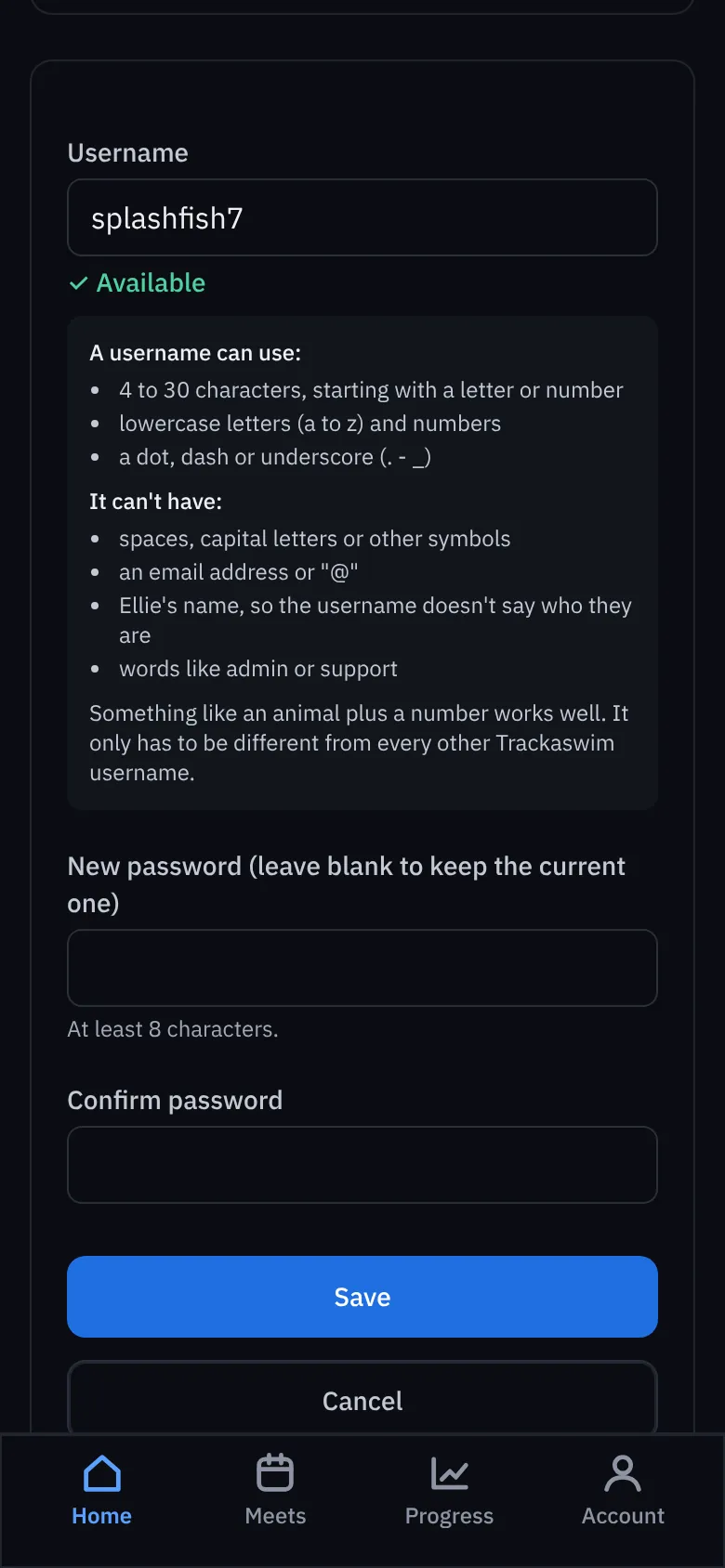
- Choose a username. Something like an animal and a number works well. It must be 4 to 30 lowercase letters or numbers (dots, dashes and underscores are fine), and it can't contain their name, so it doesn't say who they are. Trackaswim tells you if it's free.
- Choose a password (at least 8 characters) and type it again.
- Press Save. They log in on the normal log-in page with the username instead of an email.
Their look
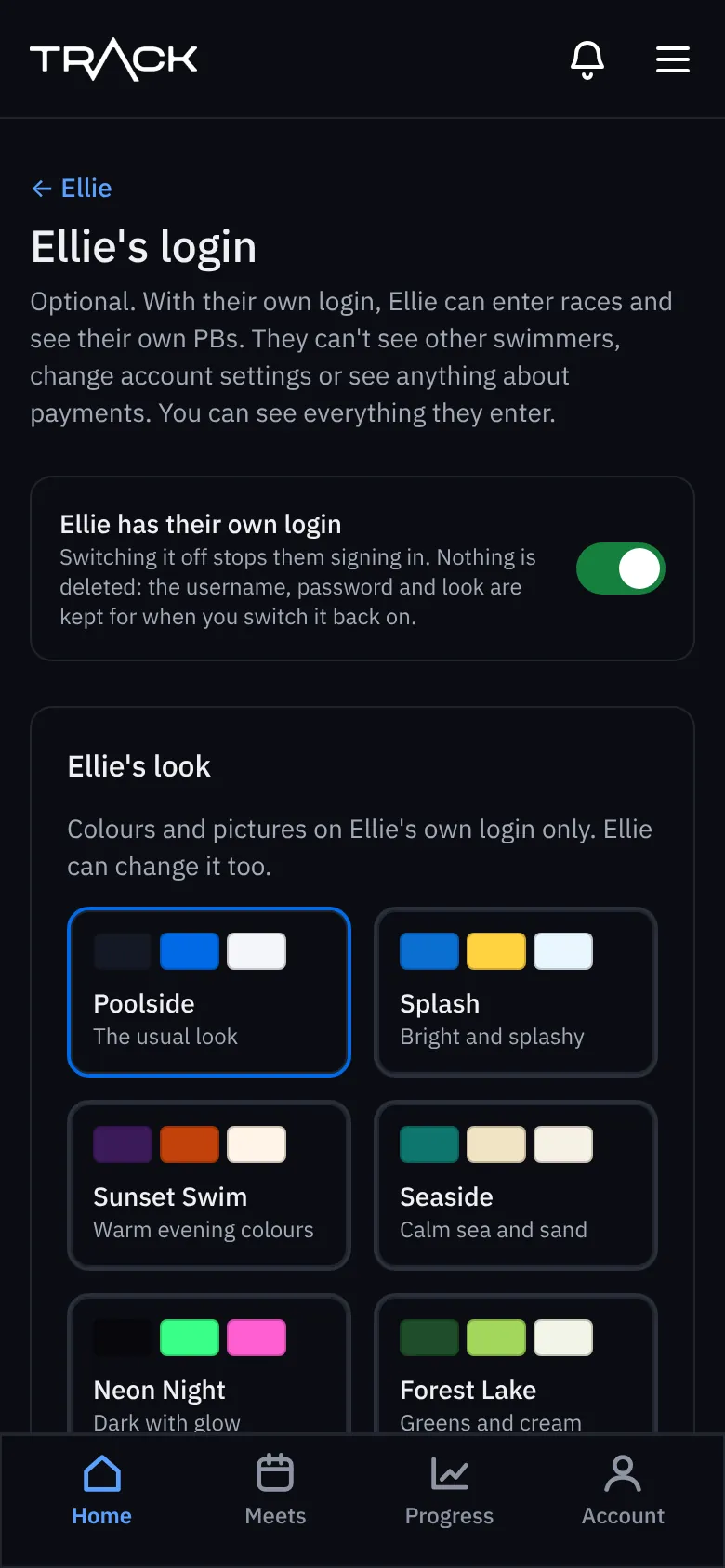
Children can pick a look for their own login, such as Splash, Sunset Swim, Seaside, Neon Night or Forest Lake. It only changes the colours, and only on their login. You can choose it for them on the same page.
Switching it off
Turn off has their own login to stop them signing in. Nothing is deleted: the username, password and look are kept for when you switch it back on. Remove this login for good deletes the login (not the swimmer or their times).